Group nodes
Groups let you treat several nodes as one box on the canvas. The box can be moved as a unit, collapsed down to its title bar, and dissolved again — all without touching the nodes or the edges inside it.
A Group is a visual container, not a Node: it has no sockets, it takes
no part in evaluation, and the nodes inside it keep their positions and edges
at all times. Collapsing only hides things.
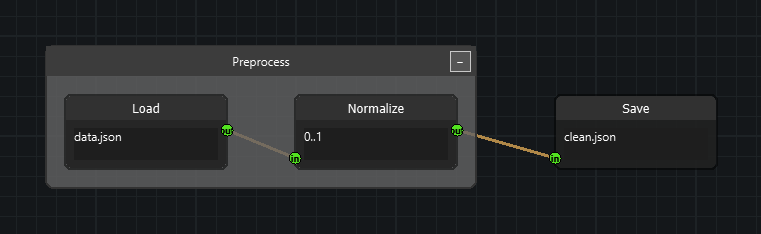
1. Put nodes into a group
Create a group, add nodes to it, and fit the box around them:
import sys
from qtpy.QtWidgets import QApplication

from nodeeditor.node_editor_widget import NodeEditorWidget
from nodeeditor.node_node import Node
from nodeeditor.node_edge import Edge
from nodeeditor.node_group import Group

app = QApplication(sys.argv)

editor = NodeEditorWidget()
scene = editor.scene

a = Node(scene, "A", inputs=[], outputs=[1])
a.setPos(-200, 0)
b = Node(scene, "B", inputs=[1], outputs=[1])
b.setPos(0, 0)
c = Node(scene, "C", inputs=[1], outputs=[])
c.setPos(250, 0)
Edge(scene, a.outputs[0], b.inputs[0])
Edge(scene, b.outputs[0], c.inputs[0])

group = Group(scene, title="My Group")
group.addNode(a)
group.addNode(b)
group.updateBounds()
scene.history.storeHistory("Created group", setModified=True)

editor.show()
sys.exit(app.exec())
updateBounds() recalculates the box so it fits the children; call it after
adding nodes. addNode() also detaches the node from any group it was in
before — a node belongs to at most one group.
2. Group whatever the user selected
Grouping from a selection is what an application usually wants:
def group_selected_nodes(self):
    nodes = [item.node for item in self.scene.getSelectedItems() if hasattr(item, "node")]
    if len(nodes) < 2:
        return

    group = Group(self.scene, title=f"Group ({len(nodes)} nodes)")
    for node in nodes:
        group.addNode(node)
    group.updateBounds()
    self.scene.history.storeHistory("Created group", setModified=True)
The hasattr(item, "node") filter matters: the selection can also contain
Group items, and only nodes can become group members.
3. Add a menu action and a shortcut
from qtpy.QtGui import QAction, QKeySequence

self.group_action = QAction("Group Selected Nodes", self)
self.group_action.setShortcut(QKeySequence("G"))
self.group_action.triggered.connect(self.group_selected_nodes)
self.menu.addAction(self.group_action)
If you build on NodeEditorWindow, the G, U and C shortcuts and their
Edit-menu entries already exist — see
Node grouping for the full list of built-in handlers.
4. Collapse and expand
group.collapse()        # hide the children, shrink to the title bar
group.expand()          # show them again, exactly where they were
group.toggleCollapse()  # whichever is the opposite of the current state
group.setCollapsed(True)
group.isCollapsed()     # -> bool
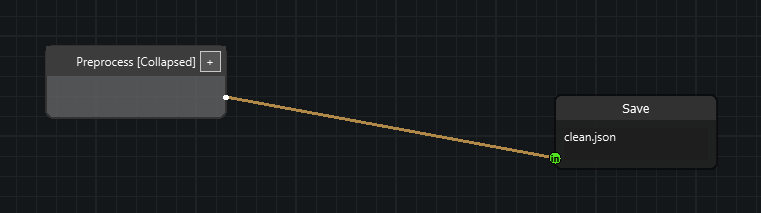
While a group is collapsed:
- the nodes inside it and the edges between them are hidden;
- the edges crossing the group boundary are rerouted to small stub rows on the left and right edges of the box, so the graph stays connected;
- the children keep their positions, which is why expanding restores the graph exactly as it was.
5. Ungroup or delete
There are three different operations, and picking the wrong one loses work:
| Call | Effect |
|---|---|
group.ungroup() |
Removes the box, keeps the nodes and their edges. |
group.deleteWithChildren() |
Removes the box and every node inside it. |
group.removeNode(node) |
Takes one node out of the group and keeps it. |
6. What happens for free
- Undo and redo — creating, moving, collapsing, renaming, recolouring, ungrouping and deleting a group all stamp history entries, so undo restores membership, bounds and the collapsed state.
- Saving and loading — groups are part of the scene's JSON. Old files written before groups existed still load.
- Drag and drop — dragging a node over a group highlights it and drops the node in on release.
Things to keep in mind
- A node belongs to at most one group, and groups cannot nest.
- Dragging a node out of a group does not remove it — the box grows or shrinks to follow. Removal is always explicit.
- Clicking the title bar selects the group alone; the body of an expanded group is click-through, so it behaves like plain canvas.
- Only the title bar is interactive: select, drag, collapse and the context menu live there.
Next steps
- Node grouping — the complete reference: edge stubs, selection model, serialization format, context menus, troubleshooting.
- Groups API — every method of
Group.